Pay and Launch
This section is used to actually pay for and launch your Contest. Until you purchase your Question(s) and Answers here, your contest will be in ‘draft’ or ‘test’ mode. Every scan of your answers will ‘overwrite’ the last scan’s vote. So, you can scan each answer and every time the results show, they will only show one result. To get all votes to count, you need to purchase your Question here.
This is also the place to come back to if you want to add more Answers (for example, you launch a chili cookoff and someone comes in with a late entry after you purchased the Question). If your contest is very successful and you only purchased a small number of responses, you can add more responses here. In addition, if you go over your response limit, there is an option to acquire your overage responses here. In short, you should check back here every so often to see if you need to purchase any new responses, etc. If you have selected to receive notifications from the Home page menu - Edit Profile - you will receive an email if your responses are getting close to the limit. Come back here to add more responses if you want to see them.
Purchase Question and Answers
- The first thing you need to do is purchase your Question and Answers. This section will show you how many Questions you have with how many Answers. You need to select the Basic Plan option from the dropdown. For our example, we have a Question with 2 Answers. We think we’ll be super successful, so we choose the Basic Plan for 2 answers at $12 and we add an additional 1 month for $10 and add 5,000 responses for $40. We’re posting this Contest on a big Daktronics display at a 2 month long rodeo!
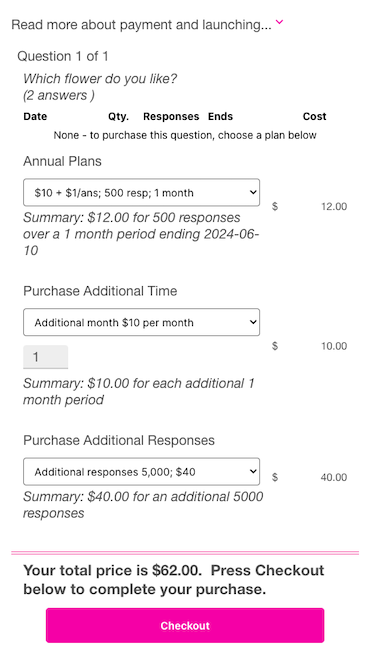
Sripe Checkout
- Be sure to check the Purchase option in the dropdown and then click . You will be redirected to a Stripe checkout page that will display the total you owe. Fill in your credit card information and then click . If you don’t want to purchase at this time, hit the back arrow in the upper left by the word Payment.
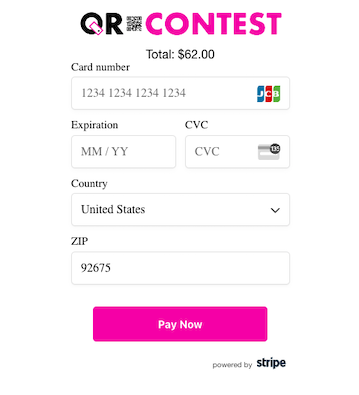
Purchase Confirmation
- After the purchase is confirmed, the interface will redirect to the Home page and show you the most recent purchase you just completed.
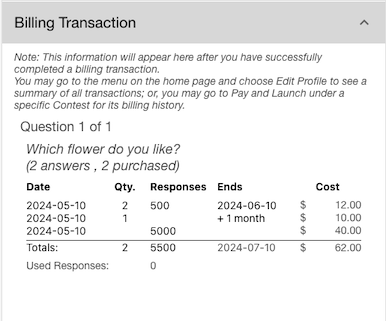
This will only show up on the Home page right after your purchase is complete. We use Stripe to process payments. If you want to see your overall payment history, you can go to the Home tab, select the Menu in the upper right corner, then Edit Plan, then choose the Billing accordion. This will show a complete history of your purchases.
Contest Purchase History
If you would like to see only the purchase related to a particular contest, go to the Contests, click on the contest you are interested in, then click on the Pay and Launch accordion. The purchase history and options to purchase other items will show up there. Here is an example of a single Question being purchased that has 3 answers. All 3 answers have been paid for.
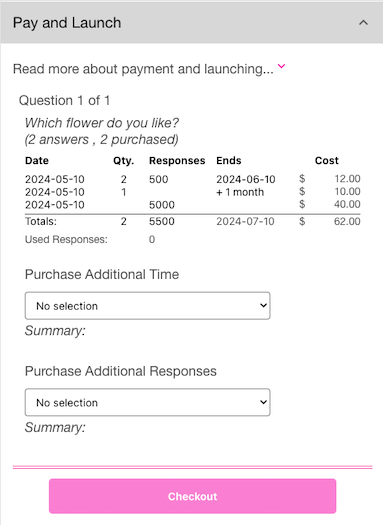
Purchasing Additional Answers
If you had a late flower entry like the example above, you might see (3 answers, 2 purchased) and the dropdown would recommend you paying for the 3rd answer, otherwise it would not be counted in the voting. See below:
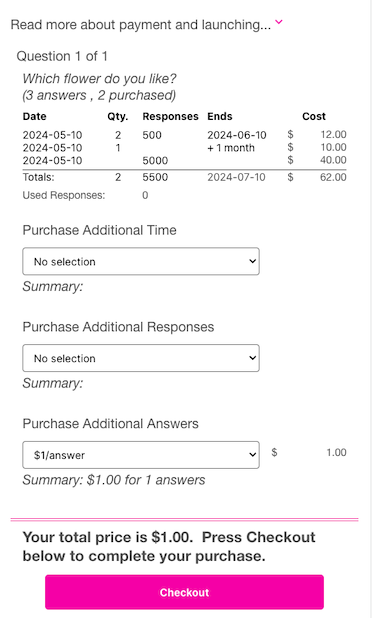
Keep in mind you can always disable an Answer by going back to the Questions and Answers page, clicking on the locked icon (after you purchased) and choose to disable it. This might be useful if someone brought some chilli that made everyone sick and you didn’t want anyone else to vote for it.